IPRA Legal Counsel
IPRA Legal Counsel
Once an IPRA request has been submitted and assigned by the Records Division, the IPRA Legal Counsel or Legal Supervisor can access the case from their Case 360 dashboard.
Sign In & Access IPRA Requests
-
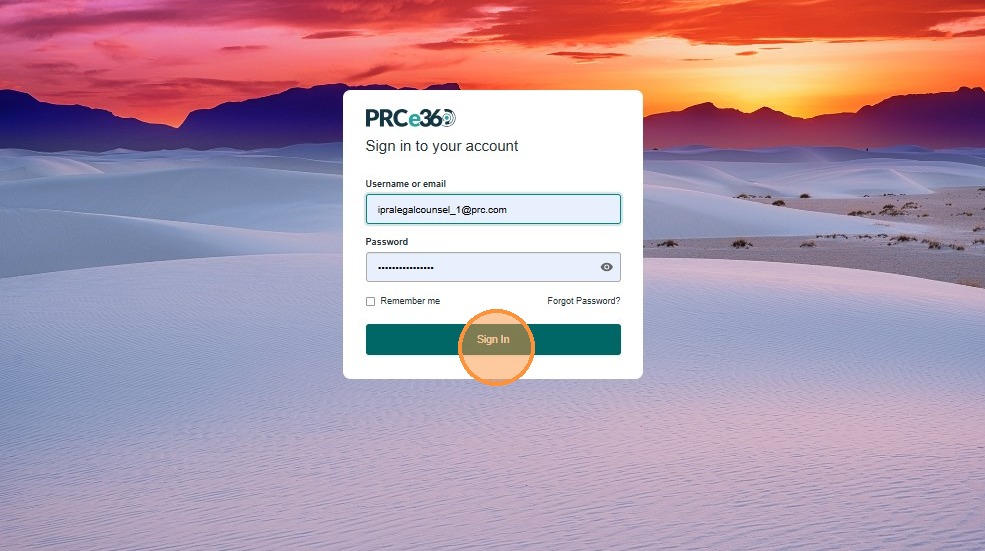
Enter user credentials and click Sign In.
-
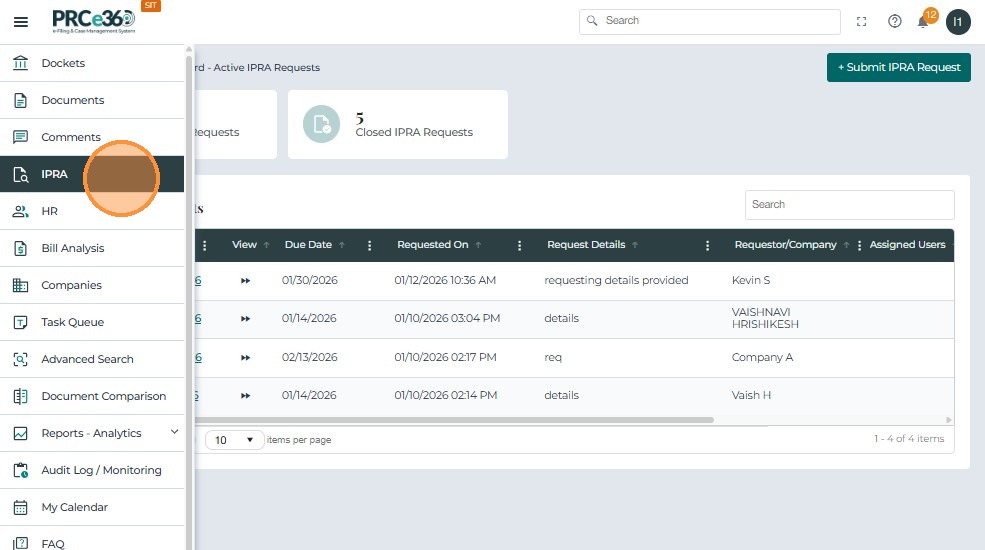
Click the side menu button.
-
Click the IPRA tab to navigate to the IPRA dashboard.
-
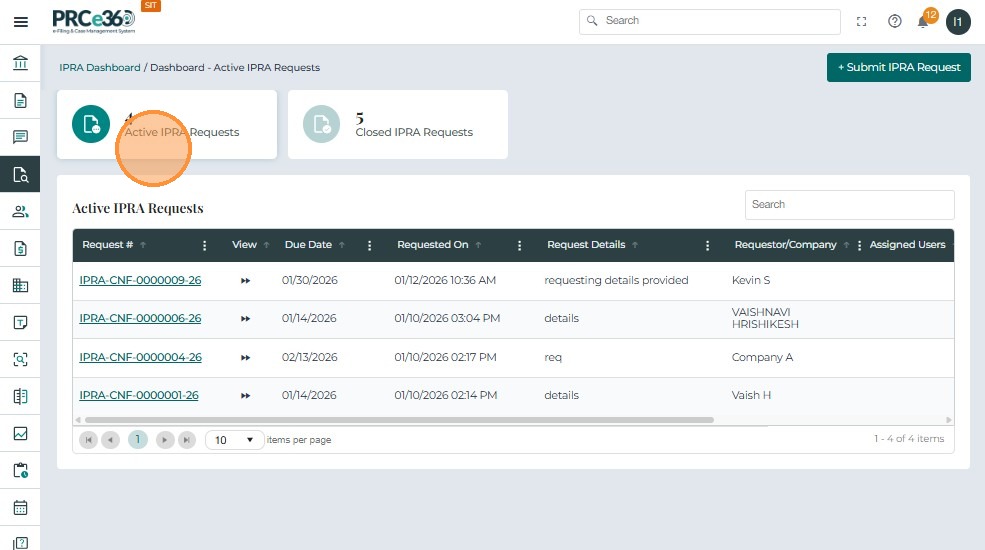
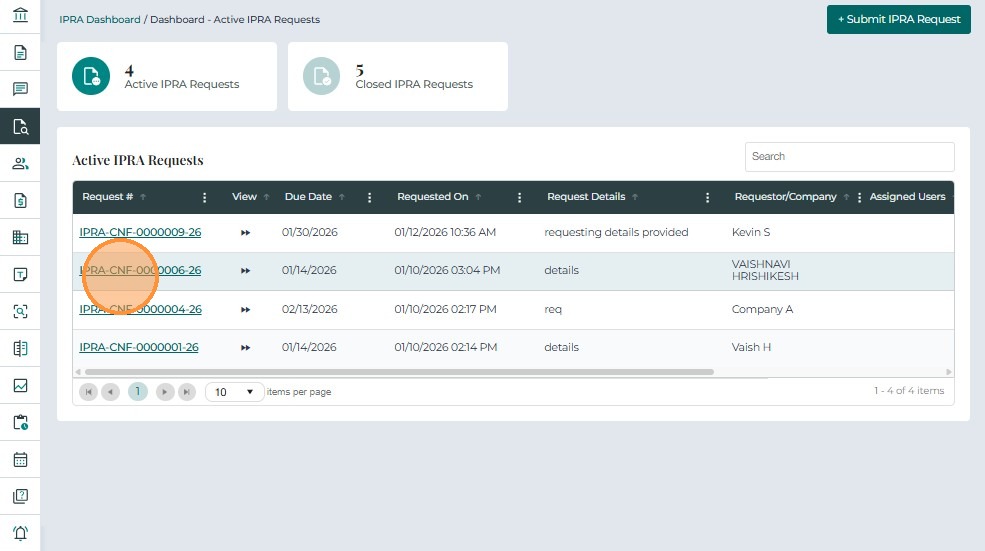
Click the Active IPRA Requests tile to view the full list of requests.
-
Click the Request # to navigate to Case 360 for that request.
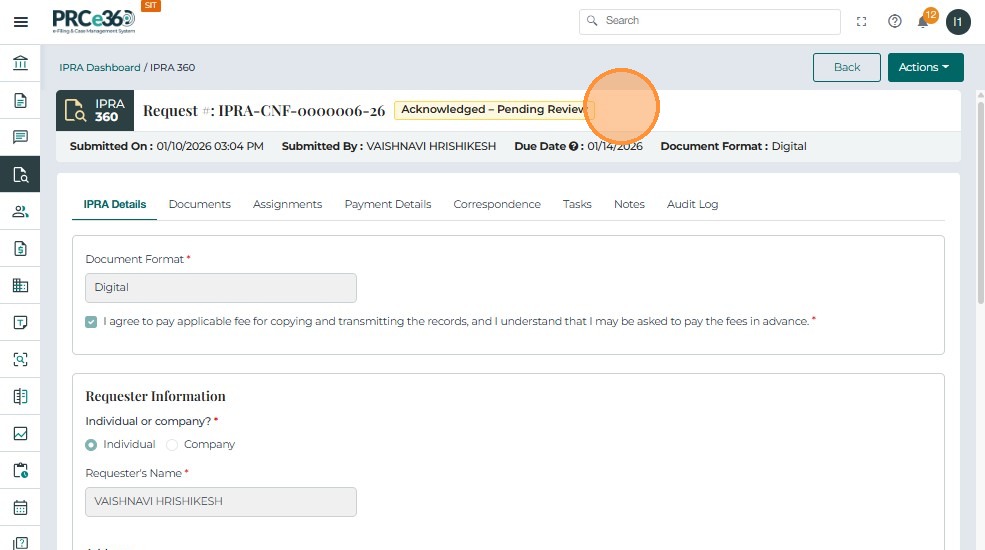
Case 360 Overview (Legal Counsel View)
For Legal Counsel, the following tabs function similarly to the Records Supervisor view, with full access to records and documents:
-
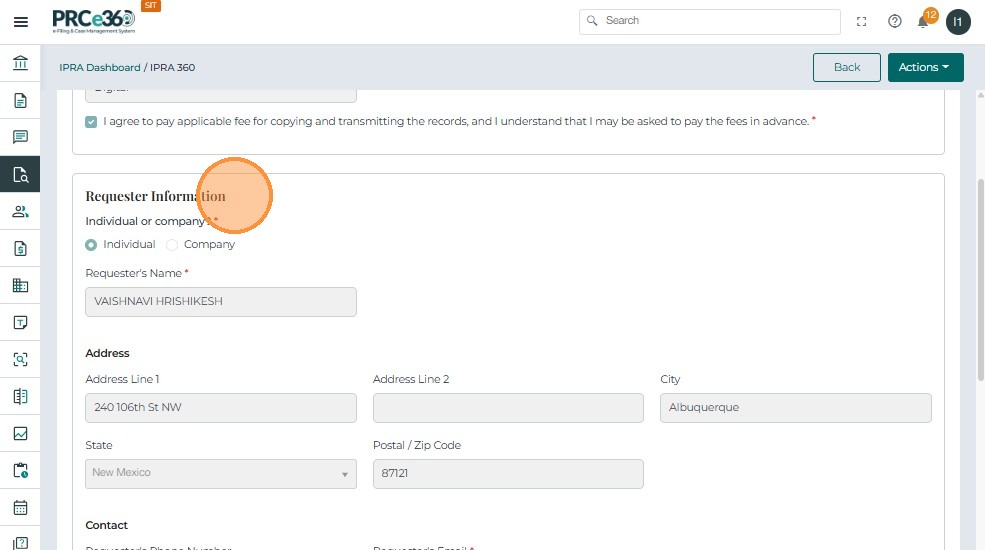
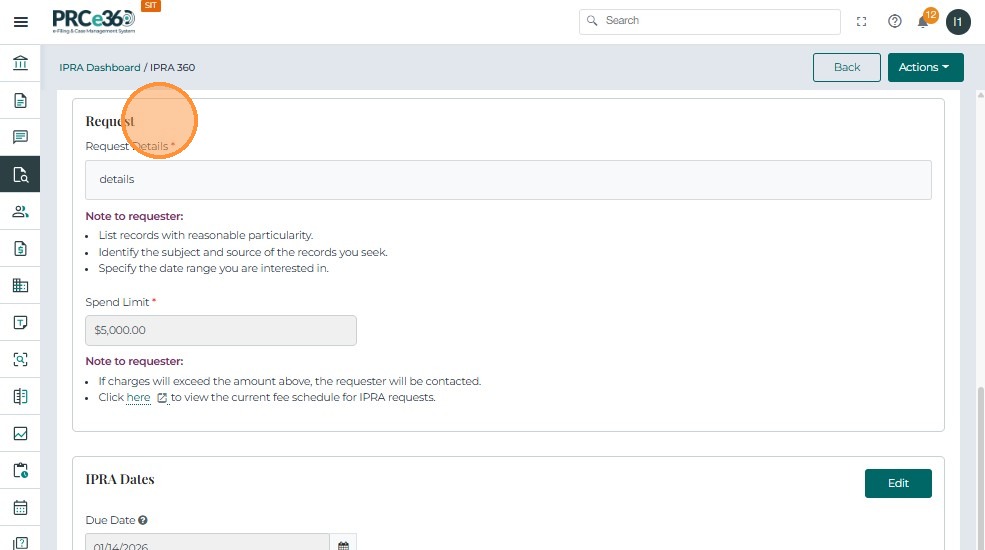
IPRA Details
-
Documents
-
Tasks
-
Payment Details
-
Notes
IPRA Details tab
The legal counsel can view the data submitted by the Recors Supervisor. If needed they can update the date.
Documents Tab
On Documents tab , the IPRA Legal counsel will have another option to mark documents as responsive.
- Mark as Responsive / Mark as Non-Responsive / Clear Responsive – Set or clear whether the document is responsive to the request.
This feature allows authorized users to mark documents as responsive to the IPRA request.
-
Click the Actions (three-dot) icon for a document.
-
Select Mark as Responsive.

- A confirmation popup appears. Click Yes to confirm.
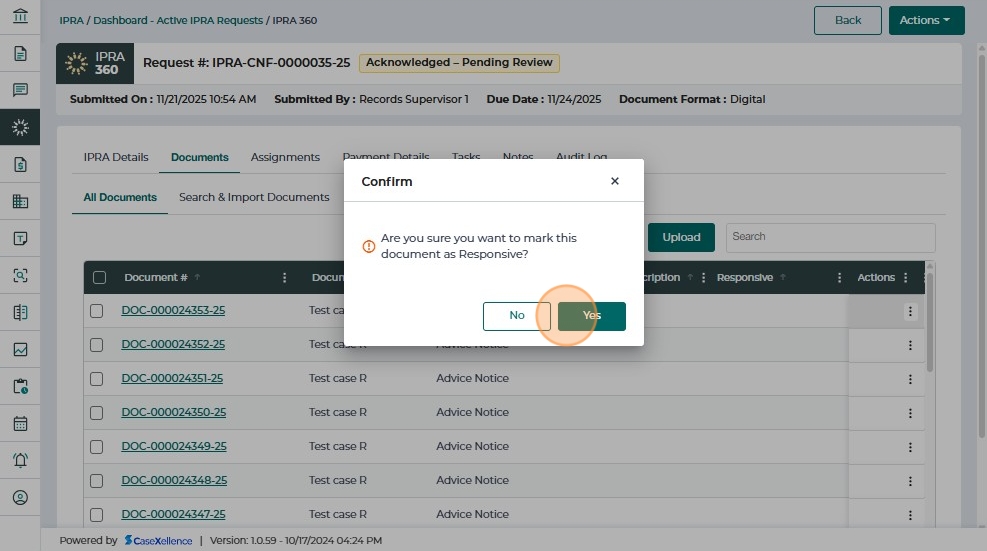
- The system displays the success message: "Document made Responsive successfully."

- The Responsive column is updated to Yes in the document list.

For marking the document as Non responsive,
- Click Actions → Mark as Non-Responsive.

- Confirm the popup.

- The system displays: "Document made Non-Responsive successfully."

- The Responsive column is updated to No in the document list.

For clearing the response
You can reverse or clear a document's responsive status.
- Click Actions → Clear Responsive.

- Confirm the prompt by clicking Yes.

- The system displays: "Responsive flag cleared successfully."

- The Responsive column becomes blank in the document list

The Remaining Functionalities in Documents Tab work similar to that of the Records Supervisor.
Assignments Tab – Legal Counsel
The Assignments tab, however, functions differently for Legal Counsel (they assign to supervisors).
When Records Supervisor submits an IPRA request:
-
The IPRA Legal Counsel is responsible for taking the first official action.
-
The case status is Acknowledged – Pending Review.
-
The status remains pending until Legal Counsel assigns the case to a supervisor.The IPRA Legal can only assign to supervisors.
-
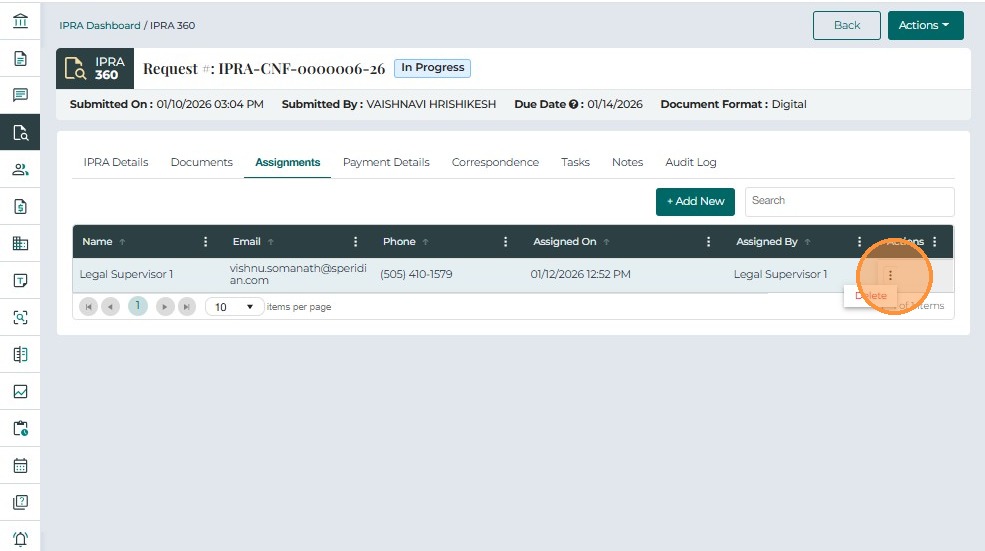
Once assignment is completed, the status updates to In Progress.
Steps:
-
From Case 360, click the Assignments tab.
-
If no assignments exist, the table is empty (columns: Name, Email, Phone, Assigned On, Assigned By, Actions).
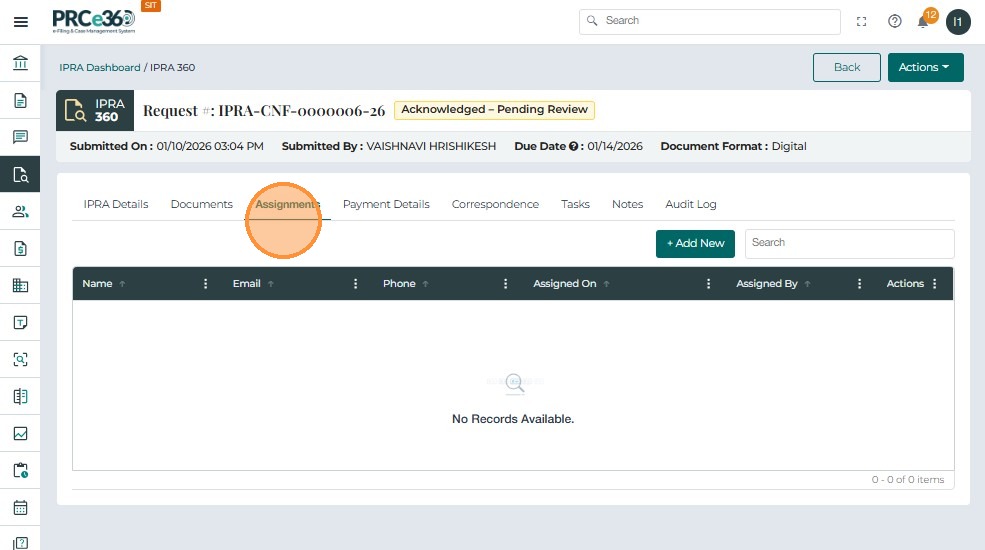
-
Click + Add New to begin assignment.
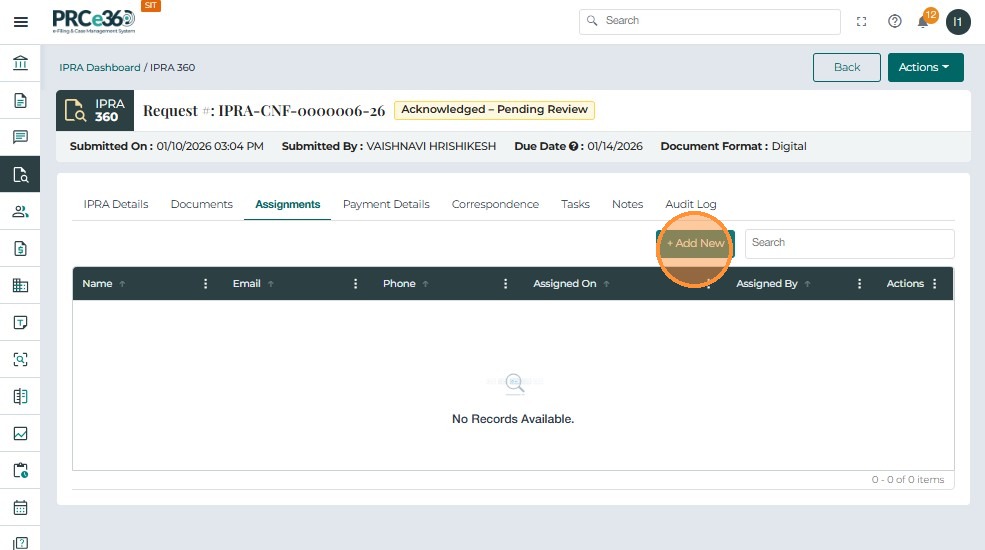
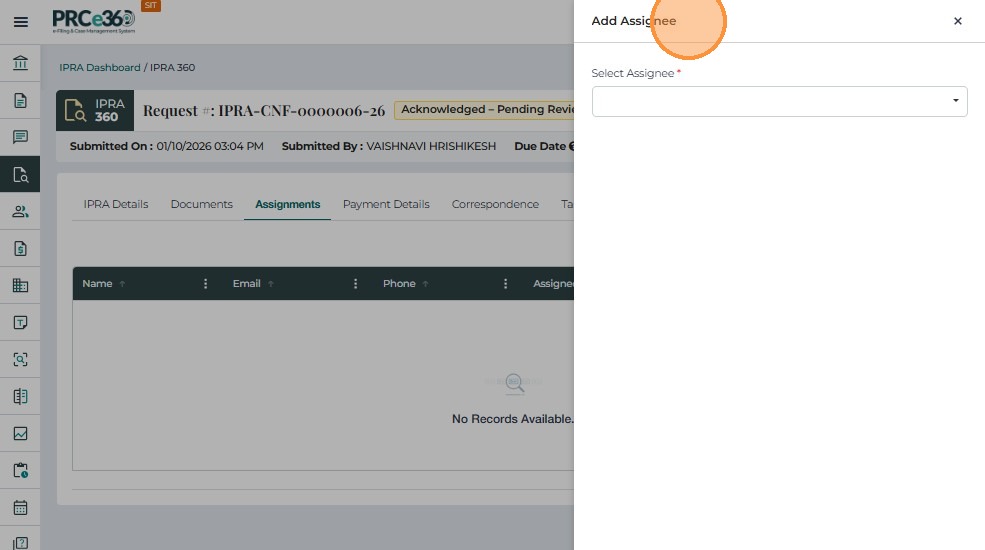
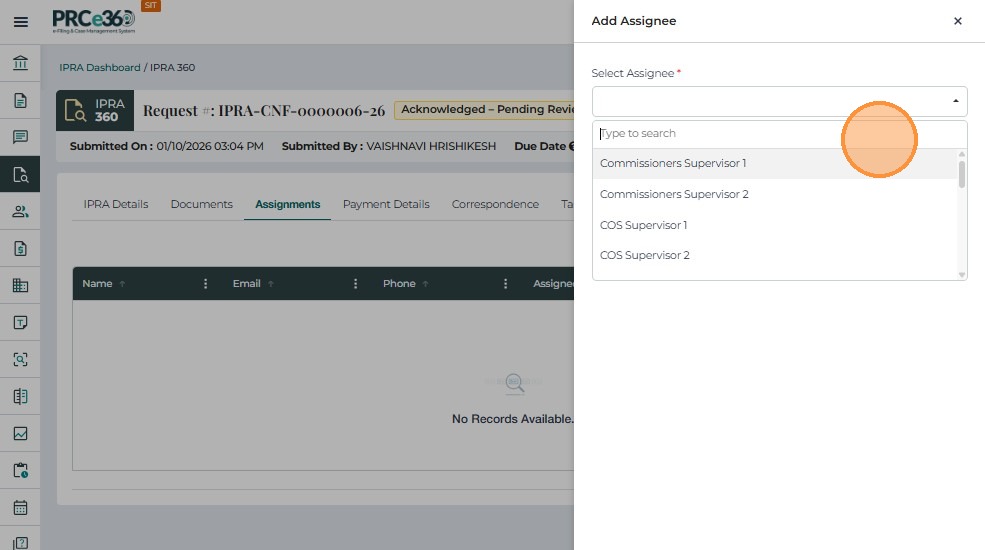
- A Select Assignee popup appears.
-
Click the Select Assignee dropdown and choose a supervisor:
- e.g., Records Supervisor 1, Legal Supervisor 1, OGC Supervisor 1 or OGC Supervisor 2.
-
Select the desired supervisor and click Submit.
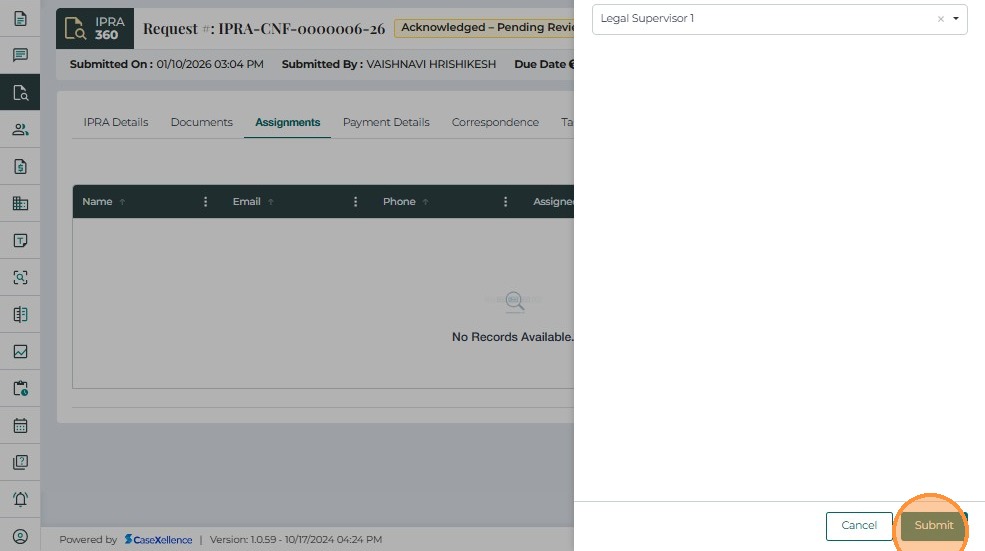
- A success message appears: "Assignee was added successfully."

-
The new assignee appears in the Assignments table with:
-
Name
-
Email
-
Phone
-
Assigned On
-
Assigned By
-
Actions
-
Remove/Update an Assignment
If an assignment was made in error:
-
In the Assignments tab, locate the assignee.
-
Click Actions → Delete.
-
Confirm deletion (Yes / No).
-
After assignment, the case status changes:
- Acknowledged – Pending Review → In Progress
-
The system triggers in-app and email notifications to the assigned supervisor.
Legal Counsel Actions Menu (In Progress Cases)
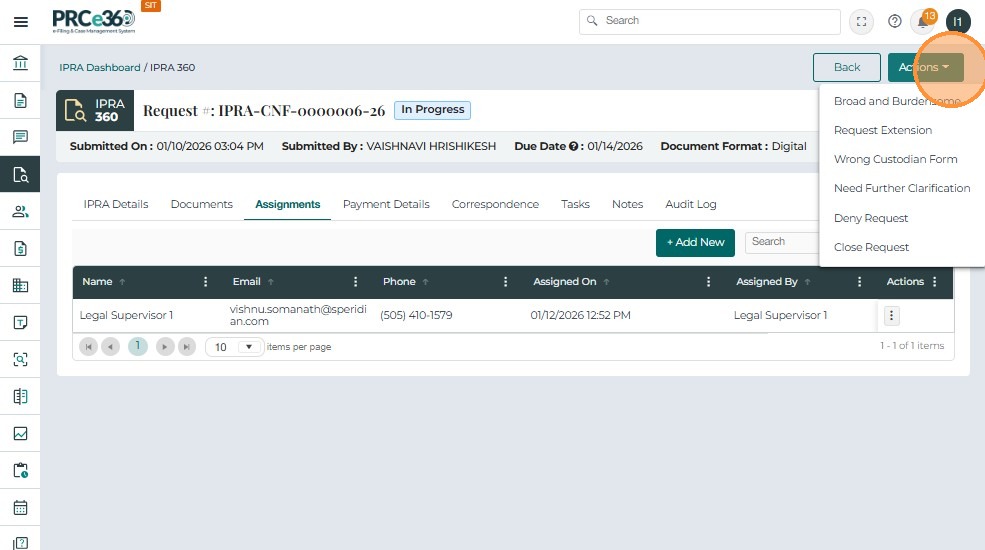
Once a case is In Progress, Legal Counsel gains access to an expanded Actions menu, including:
-
Broad and Burdensome
-
Request Extension
-
Wrong Custodian Form
-
Need Further Clarification
-
Reject Request
-
Close Request
The Functionalities are similar to that descriped for Records Supervisor